

共计 30613 个字符,预计需要花费 77 分钟才能阅读完成。
目前 docker 主要应用于单机环境,使用网桥模式,但如果想把多台主机网络互相,让多台主机内部的 container 互相通信,就得使用其他的软件来帮忙,可以使用 Weave、Kubernetes、Flannel、SocketPlane 或者 openvswitch 等,我这里就使用 openvswitch 来介绍 docker 多台主机网络互通。
先看一个使用 openvswitch 连接的架构图,连接的方式是 vxlan
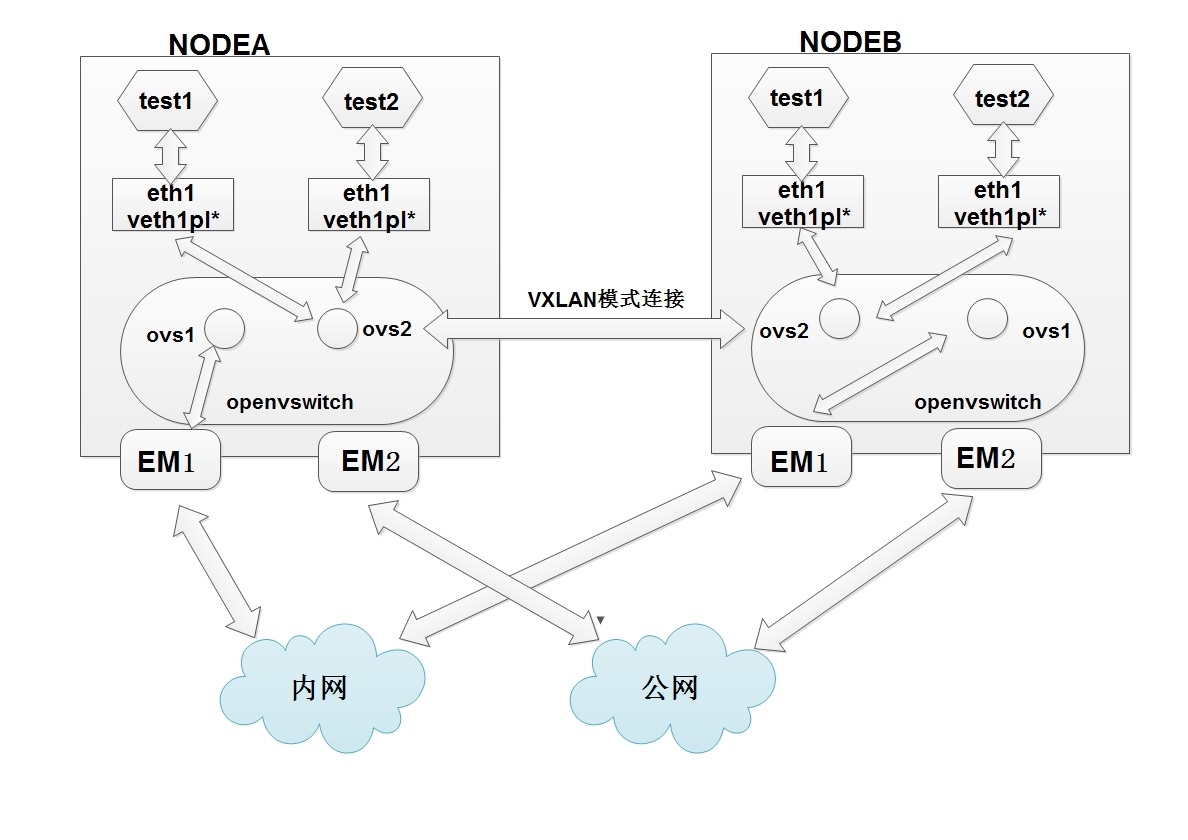
说明:
这里有 2 台主机,分别是 NODEA 与 NODEB,系统是 CentOS7,内核是 3.18(默认 centos7 内核是 3.10,但想使用 vxlan,所以得升级,参考 http://www.linuxidc.com/Linux/2015-02/112697.htm)
docker 是 1.3.2 版本,存储引擎是 devicemapper。
每台主机里都有 2 个网桥 ovs1 与 ovs2,ovs1 是管理网络,连接内网网卡 em1,ovs2 是数据网络,docker 测试机都连接这个 ovs2,并且 container 创建的时候网络都是 none,使用 pipework 指定固定 ip。
然后 2 台主机使用 vxlan 连接网络。
重要:
我个人认为使用这个模式并且指定固定 ip,适用于的环境主要是给研发或者个人的测试模式,如果是集群环境,没必要指定固定 ip(我这里的集群就没有使用固定 ip,使用动态 ip,效果很好,后续给大家介绍集群)。
下面是部署方法
环境

CentOS 6/ 7 系列安装 Docker http://www.linuxidc.com/Linux/2014-07/104768.htm
Docker 的搭建 Gitlab CI 全过程详解 http://www.linuxidc.com/Linux/2013-12/93537.htm
Docker 安装应用(CentOS 6.5_x64) http://www.linuxidc.com/Linux/2014-07/104595.htm
在 Docker 中使用 MySQL http://www.linuxidc.com/Linux/2014-01/95354.htm
在 Ubuntu Trusty 14.04 (LTS) (64-bit)安装 Docker http://www.linuxidc.com/Linux/2014-10/108184.htm
Docker 安装应用(CentOS 6.5_x64) http://www.linuxidc.com/Linux/2014-07/104595.htm
Ubuntu 14.04 安装 Docker http://www.linuxidc.com/linux/2014-08/105656.htm
阿里云 CentOS 6.5 模板上安装 Docker http://www.linuxidc.com/Linux/2014-11/109107.htm
一、安装 openvswitch
我的版本是最新的 2.3.1
1、安装基础环境
yum install gcc make python-devel openssl-devel kernel-devel graphviz \
kernel-debug-devel autoconf automake rpm-build RedHat-rpm-config \
libtool
2、下载最新的包
wget http://openvswitch.org/releases/openvswitch-2.3.1.tar.gz
3、解压与打包
tar zxvf openvswitch-2.3.1.tar.gz
mkdir -p ~/rpmbuild/SOURCES
cp openvswitch-2.3.1.tar.gz ~/rpmbuild/SOURCES/
sed ‘s/openvswitch-kmod, //g’ openvswitch-2.3.1/rhel/openvswitch.spec > openvswitch-2.3.1/rhel/openvswitch_no_kmod.spec
rpmbuild -bb –without check openvswitch-2.3.1/rhel/openvswitch_no_kmod.spec
之后会在~/rpmbuild/RPMS/x86_64/ 里有 2 个文件
total 9500
-rw-rw-r– 1 ovswitch ovswitch 2013688 Jan 15 03:20 openvswitch-2.3.1-1.x86_64.rpm
-rw-rw-r– 1 ovswitch ovswitch 7712168 Jan 15 03:20 openvswitch-debuginfo-2.3.1-1.x86_64.rpm
安装第一个就行
4、安装
yum localinstall ~/rpmbuild/RPMS/x86_64/openvswitch-2.3.1-1.x86_64.rpm
5、启动
systemctl start openvswitch
6、查看状态
[root@docker-test3 tmp]# systemctl status openvswitch
openvswitch.service – LSB: Open vSwitch switch
Loaded: loaded (/etc/rc.d/init.d/openvswitch)
Active: active (running) since Wed 2015-01-28 23:34:01 CST; 6 days ago
CGroup: /system.slice/openvswitch.service
├─20314 ovsdb-server: monitoring pid 20315 (healthy)
├─20315 ovsdb-server /etc/openvswitch/conf.db -vconsole:emer -vsyslog:err -vfile:info –remote=punix:/var/run/openvswitch/db.sock –private-key=db:Open_vSwitch,SSL,p…
├─20324 ovs-vswitchd: monitoring pid 20325 (healthy)
└─20325 ovs-vswitchd unix:/var/run/openvswitch/db.sock -vconsole:emer -vsyslog:err -vfile:info –mlockall –no-chdir –log-file=/var/log/openvswitch/ovs-vswitchd.log…
Jan 28 23:34:01 ip-10-10-17-3 openvswitch[20291]: /etc/openvswitch/conf.db does not exist … (warning).
Jan 28 23:34:01 ip-10-10-17-3 openvswitch[20291]: Creating empty database /etc/openvswitch/conf.db [OK]
Jan 28 23:34:01 ip-10-10-17-3 openvswitch[20291]: Starting ovsdb-server [OK]
Jan 28 23:34:01 ip-10-10-17-3 ovs-vsctl[20316]: ovs|00001|vsctl|INFO|Called as ovs-vsctl –no-wait — init — set Open_vSwitch . db-version=7.6.2
Jan 28 23:34:01 ip-10-10-17-3 ovs-vsctl[20321]: ovs|00001|vsctl|INFO|Called as ovs-vsctl –no-wait set Open_vSwitch . ovs-version=2.3.1 “external-ids:system-id=\”6ea…”unknown\””
Jan 28 23:34:01 ip-10-10-17-3 openvswitch[20291]: Configuring Open vSwitch system IDs [OK]
Jan 28 23:34:01 ip-10-10-17-3 openvswitch[20291]: Starting ovs-vswitchd [OK]
Jan 28 23:34:01 ip-10-10-17-3 openvswitch[20291]: Enabling remote OVSDB managers [OK]
Jan 28 23:34:01 ip-10-10-17-3 systemd[1]: Started LSB: Open vSwitch switch.
Hint: Some lines were ellipsized, use -l to show in full.
可以看到是正常运行状态
具体的安装详细步骤可以参考
https://github.com/openvswitch/ovs/blob/master/INSTALL.RHEL.md 与 http://www.linuxidc.com/Linux/2014-12/110272.htm
更多详情见请继续阅读下一页的精彩内容:http://www.linuxidc.com/Linux/2015-02/113361p2.htm
二、部署单机环境的 docker
1、下载 pipework
使用这个软件进行固定 ip 设置
cd /tmp/
git clone https://github.com/jpetazzo/pipework.git
2、在 NODEA(ip 是 10.10.17.3)里运行下面命令
可以把下面内容复制到脚本里运行
#!/bin/bash
#author: Deng Lei
#email: dl528888@gmail.com
# 删除 docker 测试机
docker rm `docker stop $(docker ps -a -q)`
# 删除已有的 openvswitch 交换机
ovs-vsctl list-br|xargs -I {} ovs-vsctl del-br {}
# 创建交换机
ovs-vsctl add-br ovs1
ovs-vsctl add-br ovs2
# 把物理网卡加入 ovs2
ovs-vsctl add-port ovs1 em1
ip link set ovs1 up
ifconfig em1 0
ifconfig ovs1 10.10.17.3
ip link set ovs2 up
ip addr add 172.16.0.3/16 dev ovs2
pipework_dir=’/tmp/pipework’
docker run –restart always –privileged -d –net=”none” –name=’test1′ docker.ops-chukong.com:5000/CentOS6-http:new /usr/bin/supervisord
$pipework_dir/pipework ovs2 test1 172.16.0.5/16@172.16.0.3
docker run –restart always –privileged -d –net=”none” –name=’test2′ docker.ops-chukong.com:5000/centos6-http:new /usr/bin/supervisord
$pipework_dir/pipework ovs2 test2 172.16.0.6/16@172.16.0.3
根据自己的环境修改上面内容
运行脚本
[root@docker-test3 tmp]# sh openvswitch_docker.sh
5a1139276ccd
03d866e20f58
6352f9ecd69450e332a13ec5dfecba106e58cf2a301e9b539a7e690cd61934f7
8e294816e5225dbee7e8442be1d9d5b4c6072d935b68e332b84196ea1db6f07c
[root@docker-test3 tmp]# docker ps -a
CONTAINER ID IMAGE COMMAND CREATED STATUS PORTS NAMES
8e294816e522 docker.ops-chukong.com:5000/centos6-http:new “/usr/bin/supervisor 3 seconds ago Up 2 seconds test2
6352f9ecd694 docker.ops-chukong.com:5000/centos6-http:new “/usr/bin/supervisor 3 seconds ago Up 3 seconds test1
可以看到已经启动了 2 个容器,分别是 test1 与 test2
下面从本地登陆指定的 ip 试试
[root@docker-test3 tmp]# ssh 172.16.0.5
The authenticity of host ‘172.16.0.5 (172.16.0.5)’ can’t be established.
RSA key fingerprint is 39:7c:13:9f:d4:b0:d7:63:fc:ff:ae:e3:46:a4:bf:6b.
Are you sure you want to continue connecting (yes/no)? yes
Warning: Permanently added ‘172.16.0.5’ (RSA) to the list of known hosts.
root@172.16.0.5’s password:
Last login: Mon Nov 17 14:10:39 2014 from 172.17.42.1
root@6352f9ecd694:~
18:57:50 # ifconfig
eth1 Link encap:Ethernet HWaddr 26:39:B1:88:25:CC
inet addr:172.16.0.5 Bcast:0.0.0.0 Mask:255.255.0.0
inet6 addr: fe80::2439:b1ff:fe88:25cc/64 Scope:Link
UP BROADCAST RUNNING MULTICAST MTU:1500 Metric:1
RX packets:65 errors:0 dropped:6 overruns:0 frame:0
TX packets:41 errors:0 dropped:0 overruns:0 carrier:0
collisions:0 txqueuelen:1000
RX bytes:8708 (8.5 KiB) TX bytes:5992 (5.8 KiB)
lo Link encap:Local Loopback
inet addr:127.0.0.1 Mask:255.0.0.0
inet6 addr: ::1/128 Scope:Host
UP LOOPBACK RUNNING MTU:65536 Metric:1
RX packets:0 errors:0 dropped:0 overruns:0 frame:0
TX packets:0 errors:0 dropped:0 overruns:0 carrier:0
collisions:0 txqueuelen:0
RX bytes:0 (0.0 b) TX bytes:0 (0.0 b)
root@6352f9ecd694:~
18:57:51 # ping 172.16.0.6 -c 2
PING 172.16.0.6 (172.16.0.6) 56(84) bytes of data.
64 bytes from 172.16.0.6: icmp_seq=1 ttl=64 time=0.433 ms
64 bytes from 172.16.0.6: icmp_seq=2 ttl=64 time=0.040 ms
— 172.16.0.6 ping statistics —
2 packets transmitted, 2 received, 0% packet loss, time 1000ms
rtt min/avg/max/mdev = 0.040/0.236/0.433/0.197 ms
root@6352f9ecd694:~
18:58:03 # ping 172.16.0.3 -c 2
PING 172.16.0.3 (172.16.0.3) 56(84) bytes of data.
64 bytes from 172.16.0.3: icmp_seq=1 ttl=64 time=0.369 ms
64 bytes from 172.16.0.3: icmp_seq=2 ttl=64 time=0.045 ms
— 172.16.0.3 ping statistics —
2 packets transmitted, 2 received, 0% packet loss, time 999ms
rtt min/avg/max/mdev = 0.045/0.207/0.369/0.162 ms
root@6352f9ecd694:~
18:58:09 # ping www.baidu.com -c 2
PING www.a.shifen.com (180.149.131.205) 56(84) bytes of data.
64 bytes from 180.149.131.205: icmp_seq=1 ttl=54 time=1.83 ms
64 bytes from 180.149.131.205: icmp_seq=2 ttl=54 time=1.81 ms
— www.a.shifen.com ping statistics —
2 packets transmitted, 2 received, 0% packet loss, time 1003ms
rtt min/avg/max/mdev = 1.816/1.827/1.839/0.044 ms
登陆后可以看到容器内的 ip 是指定的,并且能 ping 另外同一个网段的 172.16.0.6,外网也能 ping 通。
下面进行 vxlan 测试,需要现在另外一个物理宿主机进行上面的脚本安装,然后在进行 vxlan 配置
3、在 NODEB(ip 是 10.10.17.4)里运行
脚本内容是
#!/bin/bash
#author: Deng Lei
#email: dl528888@gmail.com
# 删除 docker 测试机
docker rm `docker stop $(docker ps -a -q)`
# 删除已有的 openvswitch 交换机
ovs-vsctl list-br|xargs -I {} ovs-vsctl del-br {}
# 创建交换机
ovs-vsctl add-br ovs1
ovs-vsctl add-br ovs2
# 把物理网卡加入 ovs2
ovs-vsctl add-port ovs1 em1
ip link set ovs1 up
ifconfig em1 0
ifconfig ovs1 10.10.17.4
ip link set ovs2 up
ip addr add 172.16.0.4/16 dev ovs2
pipework_dir=’/tmp/pipework’
docker run –restart always –privileged -d –net=”none” –name=’test1′ docker.ops-chukong.com:5000/centos6-http:new /usr/bin/supervisord
$pipework_dir/pipework ovs2 test1 172.16.0.8/16@172.16.0.4
docker run –restart always –privileged -d –net=”none” –name=’test2′ docker.ops-chukong.com:5000/centos6-http:new /usr/bin/supervisord
$pipework_dir/pipework ovs2 test2 172.16.0.9/16@172.16.0.4
运行这个脚本
[root@docker-test4 tmp]# sh openvswitch_docker.sh
3999d60c5833
1b42d09f3311
a10c7b6f1141056e5276c44b348652e66921f322a96699903cf1c372858633d3
7e907cf62e593c27deb3ff455d1107074dfb975e68a3ac42ff844e84794322cd
[root@docker-test4 tmp]# docker ps -a
CONTAINER ID IMAGE COMMAND CREATED STATUS PORTS NAMES
7e907cf62e59 docker.ops-chukong.com:5000/centos6-http:new “/usr/bin/supervisor 3 seconds ago Up 2 seconds test2
a10c7b6f1141 docker.ops-chukong.com:5000/centos6-http:new “/usr/bin/supervisor 4 seconds ago Up 3 seconds test1
登陆分别的固定 ip 试试
[root@docker-test4 tmp]# ssh 172.16.0.8
The authenticity of host ‘172.16.0.8 (172.16.0.8)’ can’t be established.
RSA key fingerprint is 39:7c:13:9f:d4:b0:d7:63:fc:ff:ae:e3:46:a4:bf:6b.
Are you sure you want to continue connecting (yes/no)? yes
Warning: Permanently added ‘172.16.0.8’ (RSA) to the list of known hosts.
root@172.16.0.8’s password:
Last login: Mon Nov 17 14:10:39 2014 from 172.17.42.1
root@a10c7b6f1141:~
18:45:05 # ifconfig
eth1 Link encap:Ethernet HWaddr CA:46:87:58:6C:BF
inet addr:172.16.0.8 Bcast:0.0.0.0 Mask:255.255.0.0
inet6 addr: fe80::c846:87ff:fe58:6cbf/64 Scope:Link
UP BROADCAST RUNNING MULTICAST MTU:1500 Metric:1
RX packets:75 errors:0 dropped:2 overruns:0 frame:0
TX packets:41 errors:0 dropped:0 overruns:0 carrier:0
collisions:0 txqueuelen:1000
RX bytes:10787 (10.5 KiB) TX bytes:5992 (5.8 KiB)
lo Link encap:Local Loopback
inet addr:127.0.0.1 Mask:255.0.0.0
inet6 addr: ::1/128 Scope:Host
UP LOOPBACK RUNNING MTU:65536 Metric:1
RX packets:0 errors:0 dropped:0 overruns:0 frame:0
TX packets:0 errors:0 dropped:0 overruns:0 carrier:0
collisions:0 txqueuelen:0
RX bytes:0 (0.0 b) TX bytes:0 (0.0 b)
root@a10c7b6f1141:~
18:45:06 # ping 172.16.0.9
PING 172.16.0.9 (172.16.0.9) 56(84) bytes of data.
64 bytes from 172.16.0.9: icmp_seq=1 ttl=64 time=0.615 ms
^C
— 172.16.0.9 ping statistics —
1 packets transmitted, 1 received, 0% packet loss, time 531ms
rtt min/avg/max/mdev = 0.615/0.615/0.615/0.000 ms
root@a10c7b6f1141:~
18:45:10 # ping 172.16.0.4
PING 172.16.0.4 (172.16.0.4) 56(84) bytes of data.
64 bytes from 172.16.0.4: icmp_seq=1 ttl=64 time=0.270 ms
^C
— 172.16.0.4 ping statistics —
1 packets transmitted, 1 received, 0% packet loss, time 581ms
rtt min/avg/max/mdev = 0.270/0.270/0.270/0.000 ms
root@a10c7b6f1141:~
18:45:12 # ping www.baidu.com -c 2
PING www.a.shifen.com (180.149.131.236) 56(84) bytes of data.
64 bytes from 180.149.131.236: icmp_seq=1 ttl=54 time=1.90 ms
64 bytes from 180.149.131.236: icmp_seq=2 ttl=54 time=2.00 ms
— www.a.shifen.com ping statistics —
2 packets transmitted, 2 received, 0% packet loss, time 1003ms
rtt min/avg/max/mdev = 1.900/1.950/2.000/0.050 ms
root@a10c7b6f1141:~
可以看到结果跟 NODEA(10.10.17.3)里运行的一样,登陆后可以看到容器内的 ip 是指定的,并且能 ping 另外同一个网段的 172.16.0.9,外网也能 ping 通
然后在试试能否 ping 通对方的 em1 网卡与对方 ovs2 的 ip
4、在 NODEA 里测试
root@6352f9ecd694:~
18:58:48 # ping 10.10.17.3 -c 2
PING 10.10.17.3 (10.10.17.3) 56(84) bytes of data.
64 bytes from 10.10.17.3: icmp_seq=1 ttl=64 time=0.317 ms
64 bytes from 10.10.17.3: icmp_seq=2 ttl=64 time=0.042 ms
— 10.10.17.3 ping statistics —
2 packets transmitted, 2 received, 0% packet loss, time 1000ms
rtt min/avg/max/mdev = 0.042/0.179/0.317/0.138 ms
root@6352f9ecd694:~
18:58:52 # ping 10.10.17.4 -c 2
PING 10.10.17.4 (10.10.17.4) 56(84) bytes of data.
64 bytes from 10.10.17.4: icmp_seq=1 ttl=63 time=1.35 ms
64 bytes from 10.10.17.4: icmp_seq=2 ttl=63 time=0.271 ms
— 10.10.17.4 ping statistics —
2 packets transmitted, 2 received, 0% packet loss, time 1001ms
rtt min/avg/max/mdev = 0.271/0.814/1.357/0.543 ms
root@6352f9ecd694:~
18:58:56 # ping 172.16.0.3 -c 2
PING 172.16.0.3 (172.16.0.3) 56(84) bytes of data.
64 bytes from 172.16.0.3: icmp_seq=1 ttl=64 time=0.330 ms
64 bytes from 172.16.0.3: icmp_seq=2 ttl=64 time=0.040 ms
— 172.16.0.3 ping statistics —
2 packets transmitted, 2 received, 0% packet loss, time 1000ms
rtt min/avg/max/mdev = 0.040/0.185/0.330/0.145 ms
root@6352f9ecd694:~
18:59:04 # ping 172.16.0.4 -c 2
PING 172.16.0.4 (172.16.0.4) 56(84) bytes of data.
From 172.16.0.5 icmp_seq=1 Destination Host Unreachable
From 172.16.0.5 icmp_seq=2 Destination Host Unreachable
— 172.16.0.4 ping statistics —
2 packets transmitted, 0 received, +2 errors, 100% packet loss, time 3007ms
pipe 2
能 ping 通自己的 em1 与 10.10.17.4 的 em1 网卡,并且对方的 ovs2 的 ip 也能 ping 通,但 ovs2 里的主机无法 ping 通
5、在 NODEB 里测试
root@a10c7b6f1141:~
18:59:35 # ping 10.10.17.4 -c2
PING 10.10.17.4 (10.10.17.4) 56(84) bytes of data.
64 bytes from 10.10.17.4: icmp_seq=1 ttl=64 time=0.306 ms
64 bytes from 10.10.17.4: icmp_seq=2 ttl=64 time=0.032 ms
— 10.10.17.4 ping statistics —
2 packets transmitted, 2 received, 0% packet loss, time 1000ms
rtt min/avg/max/mdev = 0.032/0.169/0.306/0.137 ms
root@a10c7b6f1141:~
18:59:48 # ping 10.10.17.3 -c2
PING 10.10.17.3 (10.10.17.3) 56(84) bytes of data.
64 bytes from 10.10.17.3: icmp_seq=1 ttl=63 time=0.752 ms
64 bytes from 10.10.17.3: icmp_seq=2 ttl=63 time=0.268 ms
— 10.10.17.3 ping statistics —
2 packets transmitted, 2 received, 0% packet loss, time 1000ms
rtt min/avg/max/mdev = 0.268/0.510/0.752/0.242 ms
root@a10c7b6f1141:~
18:59:51 # ping 172.16.0.4 -c2
PING 172.16.0.4 (172.16.0.4) 56(84) bytes of data.
64 bytes from 172.16.0.4: icmp_seq=1 ttl=64 time=0.215 ms
64 bytes from 172.16.0.4: icmp_seq=2 ttl=64 time=0.037 ms
— 172.16.0.4 ping statistics —
2 packets transmitted, 2 received, 0% packet loss, time 1000ms
rtt min/avg/max/mdev = 0.037/0.126/0.215/0.089 ms
root@a10c7b6f1141:~
18:59:57 # ping 172.16.0.3 -c2
PING 172.16.0.3 (172.16.0.3) 56(84) bytes of data.
From 172.16.0.8 icmp_seq=1 Destination Host Unreachable
From 172.16.0.8 icmp_seq=2 Destination Host Unreachable
— 172.16.0.3 ping statistics —
2 packets transmitted, 0 received, +2 errors, 100% packet loss, time 3006ms
pipe 2
结果也是一样,能 ping 通自己的 em1 与 NODEA(10.10.17.3)的 em1 网卡,并且对方的 ovs2 的 ip 也能 ping 通,但 ovs2 里的主机无法 ping 通
6、vxlan 设置
在 NODEA 里运行
ovs-vsctl add-port ovs2 vx1 — set interface vx1 type=vxlan options:remote_ip=10.10.17.4
[root@docker-test3 tmp]# ovs-vsctl show
d895d78b-8c89-49bc-b429-da6a4a2dcb3a
Bridge “ovs1”
Port “em1”
Interface “em1”
Port “ovs1”
Interface “ovs1”
type: internal
Bridge “ovs2”
Port “veth1pl15561”
Interface “veth1pl15561”
Port “veth1pl15662”
Interface “veth1pl15662”
Port “vx1”
Interface “vx1”
type: vxlan
options: {remote_ip=”10.10.17.4″}
Port “ovs2”
Interface “ovs2”
type: internal
ovs_version: “2.3.1”
在 NODEB 里运行
ovs-vsctl add-port ovs2 vx1 — set interface vx1 type=vxlan options:remote_ip=10.10.17.3
[root@docker-test4 tmp]# ovs-vsctl show
5a4b1bcd-3a91-4670-9c60-8fabbff37e85
Bridge “ovs2”
Port “veth1pl28665”
Interface “veth1pl28665”
Port “ovs2”
Interface “ovs2”
type: internal
Port “vx1”
Interface “vx1”
type: vxlan
options: {remote_ip=”10.10.17.3″}
Port “veth1pl28766”
Interface “veth1pl28766”
Bridge “ovs1”
Port “ovs1”
Interface “ovs1”
type: internal
Port “em1”
Interface “em1”
ovs_version: “2.3.1”
现在 NODEA 与 NODEB 这 2 台物理机的网络都是互通的,容器的网络也是互通。
然后在 NODEA(10.10.17.3)里 ping NODEB(10.10.17.4)的 ovs2 ip 与容器的 ip
[root@docker-test3 tmp]# ssh 172.16.0.5
root@172.16.0.5’s password:
Last login: Tue Feb 3 19:04:30 2015 from 172.16.0.3
root@6352f9ecd694:~
19:04:38 # ping 172.16.0.4 -c 2
PING 172.16.0.4 (172.16.0.4) 56(84) bytes of data.
64 bytes from 172.16.0.4: icmp_seq=1 ttl=64 time=0.623 ms
64 bytes from 172.16.0.4: icmp_seq=2 ttl=64 time=0.272 ms
— 172.16.0.4 ping statistics —
2 packets transmitted, 2 received, 0% packet loss, time 1001ms
rtt min/avg/max/mdev = 0.272/0.447/0.623/0.176 ms
root@6352f9ecd694:~
19:04:41 # ping 172.16.0.8 -c 2
PING 172.16.0.8 (172.16.0.8) 56(84) bytes of data.
64 bytes from 172.16.0.8: icmp_seq=1 ttl=64 time=1.76 ms
64 bytes from 172.16.0.8: icmp_seq=2 ttl=64 time=0.277 ms
— 172.16.0.8 ping statistics —
2 packets transmitted, 2 received, 0% packet loss, time 1002ms
rtt min/avg/max/mdev = 0.277/1.023/1.769/0.746 ms
root@6352f9ecd694:~
19:04:44 # ping 172.16.0.9 -c 2
PING 172.16.0.9 (172.16.0.9) 56(84) bytes of data.
64 bytes from 172.16.0.9: icmp_seq=1 ttl=64 time=1.83 ms
64 bytes from 172.16.0.9: icmp_seq=2 ttl=64 time=0.276 ms
— 172.16.0.9 ping statistics —
2 packets transmitted, 2 received, 0% packet loss, time 1002ms
rtt min/avg/max/mdev = 0.276/1.053/1.830/0.777 ms
root@6352f9ecd694:~
可以看到可以在 NODEA(10.10.17.3)里 ping 通 NODEB(10.10.17.4)的 ovs2 ip 与交换机下面的容器 ip
如果各自设置 vxlan,还是无法连接请看看 iptables 里是否给 ovs1 进行了 input 放行
[root@docker-test3 tmp]# cat /etc/sysconfig/iptables
# Generated by iptables-save v1.4.7 on Fri Dec 6 10:59:13 2013
*filter
:INPUT DROP [0:0]
:FORWARD ACCEPT [0:0]
:OUTPUT ACCEPT [1:83]
-A INPUT -m state –state RELATED,ESTABLISHED -j ACCEPT
-A INPUT -p icmp -j ACCEPT
-A INPUT -i lo -j ACCEPT
-A INPUT -i em1 -j ACCEPT
-A INPUT -i ovs1 -j ACCEPT
-A INPUT -p tcp -m multiport –dports 50020 -j ACCEPT
-A INPUT -p tcp -j REJECT –reject-with tcp-reset
-A FORWARD -p tcp -m tcp –tcp-flags FIN,SYN,RST,ACK RST -m limit –limit 1/sec -j ACCEPT
COMMIT
# Completed on Fri Dec 6 10:59:13 2013
*nat
:PREROUTING ACCEPT [2:269]
:POSTROUTING ACCEPT [1739:127286]
:OUTPUT ACCEPT [1739:127286]
:DOCKER – [0:0]
-A PREROUTING -m addrtype –dst-type LOCAL -j DOCKER
-A POSTROUTING -s 172.16.0.0/8 ! -d 172.16.0.0/8 -j MASQUERADE
-A OUTPUT ! -d 127.0.0.0/8 -m addrtype –dst-type LOCAL -j DOCKER
COMMIT
在 NODEB 里测试
[root@docker-test4 tmp]# ssh 172.16.0.8
root@172.16.0.8’s password:
Last login: Tue Feb 3 18:59:35 2015 from 172.16.0.4
root@a10c7b6f1141:~
19:08:08 # ping 172.16.0.3 -c 2
PING 172.16.0.3 (172.16.0.3) 56(84) bytes of data.
64 bytes from 172.16.0.3: icmp_seq=1 ttl=64 time=1.48 ms
64 bytes from 172.16.0.3: icmp_seq=2 ttl=64 time=0.289 ms
— 172.16.0.3 ping statistics —
2 packets transmitted, 2 received, 0% packet loss, time 1002ms
rtt min/avg/max/mdev = 0.289/0.889/1.489/0.600 ms
root@a10c7b6f1141:~
19:08:13 # ping 172.16.0.5 -c 2
PING 172.16.0.5 (172.16.0.5) 56(84) bytes of data.
64 bytes from 172.16.0.5: icmp_seq=1 ttl=64 time=1.27 ms
64 bytes from 172.16.0.5: icmp_seq=2 ttl=64 time=0.289 ms
— 172.16.0.5 ping statistics —
2 packets transmitted, 2 received, 0% packet loss, time 1001ms
rtt min/avg/max/mdev = 0.289/0.783/1.277/0.494 ms
root@a10c7b6f1141:~
19:08:16 # ping 172.16.0.6 -c 2
PING 172.16.0.6 (172.16.0.6) 56(84) bytes of data.
64 bytes from 172.16.0.6: icmp_seq=1 ttl=64 time=1.32 ms
64 bytes from 172.16.0.6: icmp_seq=2 ttl=64 time=0.275 ms
— 172.16.0.6 ping statistics —
2 packets transmitted, 2 received, 0% packet loss, time 1001ms
rtt min/avg/max/mdev = 0.275/0.800/1.326/0.526 ms
root@a10c7b6f1141:~
结果也是一样,设置了 vxlan 就可以 2 个宿主机的所有服务器进行通信。
目前是 2 个节点的 vxlan,如果是 3 个节点呢
7、vxlan 多节点应用(超过 2 个节点)
架构图为
新节点是 NODEC(ip 是 10.10.21.199)
环境为

部署单机环境,脚本内容是
#!/bin/bash
#author: Deng Lei
#email: dl528888@gmail.com
# 删除 docker 测试机
docker rm `docker stop $(docker ps -a -q)`
# 删除已有的 openvswitch 交换机
ovs-vsctl list-br|xargs -I {} ovs-vsctl del-br {}
# 创建交换机
ovs-vsctl add-br ovs1
ovs-vsctl add-br ovs2
# 把物理网卡加入 ovs2
ovs-vsctl add-port ovs1 em1
ip link set ovs1 up
ifconfig em1 0
ifconfig ovs1 10.10.21.199
ip link set ovs2 up
ip addr add 172.16.0.11/16 dev ovs2
pipework_dir=’/tmp/pipework’
docker run –restart always –privileged -d –net=”none” –name=’test1′ docker.ops-chukong.com:5000/centos6-http:new /usr/bin/supervisord
$pipework_dir/pipework ovs2 test1 172.16.0.12/16@172.16.0.11
docker run –restart always –privileged -d –net=”none” –name=’test2′ docker.ops-chukong.com:5000/centos6-http:new /usr/bin/supervisord
$pipework_dir/pipework ovs2 test2 172.16.0.13/16@172.16.0.11
运行脚本
19:14:13 # sh openvswitch_docker.sh
534db79be57a
c014d47212868080a2a3c473b916ccbc9a45ecae4ab564807104faeb7429e1d3
5a98c459438d6e2c37d040f18282509763acc16d63010adc72852585dc255666
测试
root@docker-test1:/tmp
19:17:00 # ssh 172.16.0.12
root@172.16.0.12’s password:
Last login: Mon Nov 17 14:10:39 2014 from 172.17.42.1
root@c014d4721286:~
19:17:08 # ifconfig
eth1 Link encap:Ethernet HWaddr 4A:B3:FE:B7:01:C7
inet addr:172.16.0.12 Bcast:0.0.0.0 Mask:255.255.0.0
inet6 addr: fe80::48b3:feff:feb7:1c7/64 Scope:Link
UP BROADCAST RUNNING MULTICAST MTU:1500 Metric:1
RX packets:117 errors:0 dropped:0 overruns:0 frame:0
TX packets:89 errors:0 dropped:0 overruns:0 carrier:0
collisions:0 txqueuelen:1000
RX bytes:20153 (19.6 KiB) TX bytes:16600 (16.2 KiB)
lo Link encap:Local Loopback
inet addr:127.0.0.1 Mask:255.0.0.0
inet6 addr: ::1/128 Scope:Host
UP LOOPBACK RUNNING MTU:65536 Metric:1
RX packets:0 errors:0 dropped:0 overruns:0 frame:0
TX packets:0 errors:0 dropped:0 overruns:0 carrier:0
collisions:0 txqueuelen:0
RX bytes:0 (0.0 b) TX bytes:0 (0.0 b)
root@c014d4721286:~
19:17:10 # ping 172.16.0.11 -c 2
PING 172.16.0.11 (172.16.0.11) 56(84) bytes of data.
64 bytes from 172.16.0.11: icmp_seq=1 ttl=64 time=0.240 ms
64 bytes from 172.16.0.11: icmp_seq=2 ttl=64 time=0.039 ms
— 172.16.0.11 ping statistics —
2 packets transmitted, 2 received, 0% packet loss, time 1000ms
rtt min/avg/max/mdev = 0.039/0.139/0.240/0.101 ms
root@c014d4721286:~
19:17:16 # ping 172.16.0.12 -c 2
PING 172.16.0.12 (172.16.0.12) 56(84) bytes of data.
64 bytes from 172.16.0.12: icmp_seq=1 ttl=64 time=0.041 ms
64 bytes from 172.16.0.12: icmp_seq=2 ttl=64 time=0.026 ms
— 172.16.0.12 ping statistics —
2 packets transmitted, 2 received, 0% packet loss, time 999ms
rtt min/avg/max/mdev = 0.026/0.033/0.041/0.009 ms
root@c014d4721286:~
19:17:18 # ping 172.16.0.13 -c 2
PING 172.16.0.13 (172.16.0.13) 56(84) bytes of data.
64 bytes from 172.16.0.13: icmp_seq=1 ttl=64 time=0.316 ms
64 bytes from 172.16.0.13: icmp_seq=2 ttl=64 time=0.040 ms
— 172.16.0.13 ping statistics —
2 packets transmitted, 2 received, 0% packet loss, time 1000ms
rtt min/avg/max/mdev = 0.040/0.178/0.316/0.138 ms
root@c014d4721286:~
19:17:21 # ping www.baidu.com -c 2
PING www.a.shifen.com (180.149.131.205) 56(84) bytes of data.
64 bytes from 180.149.131.205: icmp_seq=1 ttl=54 time=2.65 ms
64 bytes from 180.149.131.205: icmp_seq=2 ttl=54 time=1.93 ms
— www.a.shifen.com ping statistics —
2 packets transmitted, 2 received, 0% packet loss, time 1002ms
rtt min/avg/max/mdev = 1.939/2.295/2.651/0.356 ms
root@c014d4721286:~
可以看到可以 ping 通本地的 ovs2 的 ip 与交换机下面是 ip
root@c014d4721286:~
19:17:26 # ping 10.10.17.3 -c 2
PING 10.10.17.3 (10.10.17.3) 56(84) bytes of data.
64 bytes from 10.10.17.3: icmp_seq=1 ttl=63 time=0.418 ms
64 bytes from 10.10.17.3: icmp_seq=2 ttl=63 time=0.213 ms
— 10.10.17.3 ping statistics —
2 packets transmitted, 2 received, 0% packet loss, time 1000ms
rtt min/avg/max/mdev = 0.213/0.315/0.418/0.104 ms
root@c014d4721286:~
19:18:05 # ping 10.10.17.4 -c 2
PING 10.10.17.4 (10.10.17.4) 56(84) bytes of data.
64 bytes from 10.10.17.4: icmp_seq=1 ttl=63 time=0.865 ms
64 bytes from 10.10.17.4: icmp_seq=2 ttl=63 time=0.223 ms
— 10.10.17.4 ping statistics —
2 packets transmitted, 2 received, 0% packet loss, time 1000ms
rtt min/avg/max/mdev = 0.223/0.544/0.865/0.321 ms
root@c014d4721286:~
19:18:08 # ping 172.16.0.3 -c 2
PING 172.16.0.3 (172.16.0.3) 56(84) bytes of data.
From 172.16.0.12 icmp_seq=1 Destination Host Unreachable
From 172.16.0.12 icmp_seq=2 Destination Host Unreachable
— 172.16.0.3 ping statistics —
2 packets transmitted, 0 received, +2 errors, 100% packet loss, time 3006ms
pipe 2
root@c014d4721286:~
19:18:19 # ping 172.16.0.4 -c 2
PING 172.16.0.4 (172.16.0.4) 56(84) bytes of data.
From 172.16.0.12 icmp_seq=1 Destination Host Unreachable
From 172.16.0.12 icmp_seq=2 Destination Host Unreachable
— 172.16.0.4 ping statistics —
2 packets transmitted, 0 received, +2 errors, 100% packet loss, time 3004ms
pipe 2
root@c014d4721286:~
可以看到能 ping 通 NODEA(10.10.17.3)与 NODEB(10.10.17.4)(em1 网卡都是走物理交换机),但他们 2 个的 ovs2 都无法 ping 通
下面是在 NODEC(10.10.21.199)里与 10.10.17.3 做一个 vxlan
19:19:22 # ovs-vsctl add-port ovs2 vx1 — set interface vx1 type=vxlan options:remote_ip=10.10.17.3
root@docker-test1:/tmp
19:20:01 # ovs-vsctl show
96259d0f-b794-49fd-81fb-3251ede9c2a5
Bridge “ovs2”
Port “veth1pl30126”
Interface “veth1pl30126”
Port “vx1”
Interface “vx1”
type: vxlan
options: {remote_ip=”10.10.17.3″}
Port “veth1pl30247”
Interface “veth1pl30247”
Port “ovs2”
Interface “ovs2”
type: internal
Bridge “ovs1”
Port “ovs1”
Interface “ovs1”
type: internal
Port “em1”
Interface “em1”
ovs_version: “2.3.1”
然后还需要在 NODEA(10.10.17.3)里配置
[root@docker-test3 x86_64]# ovs-vsctl add-port ovs2 vx2 — set interface vx2 type=vxlan options:remote_ip=10.10.21.199
[root@docker-test3 x86_64]# ovs-vsctl show
d895d78b-8c89-49bc-b429-da6a4a2dcb3a
Bridge “ovs1”
Port “em1”
Interface “em1”
Port “ovs1”
Interface “ovs1”
type: internal
Bridge “ovs2”
Port “veth1pl15561”
Interface “veth1pl15561”
Port “veth1pl15662”
Interface “veth1pl15662”
Port “vx2”
Interface “vx2”
type: vxlan
options: {remote_ip=”10.10.21.199″}
Port “vx1”
Interface “vx1”
type: vxlan
options: {remote_ip=”10.10.17.4″}
Port “ovs2”
Interface “ovs2”
type: internal
ovs_version: “2.3.1”
之前在 NODEA(10.10.17.3)里与 NODE(10.10.17.4)做的 vxlan 使用 vx1,这里 NODEA(10.10.17.3)与 NODEC(10.10.21.199)就使用 vx2 端口
然后在 NODEA(10.10.17.3)里 ping NODEC(10.10.21.199)的 ovs2 ip 与交换机下面的 ip
[root@docker-test3 x86_64]# ping 172.16.0.11 -c 2
PING 172.16.0.11 (172.16.0.11) 56(84) bytes of data.
64 bytes from 172.16.0.11: icmp_seq=1 ttl=64 time=1.48 ms
64 bytes from 172.16.0.11: icmp_seq=2 ttl=64 time=0.244 ms
— 172.16.0.11 ping statistics —
2 packets transmitted, 2 received, 0% packet loss, time 1001ms
rtt min/avg/max/mdev = 0.244/0.865/1.487/0.622 ms
[root@docker-test3 x86_64]# ping 172.16.0.12 -c 2
PING 172.16.0.12 (172.16.0.12) 56(84) bytes of data.
64 bytes from 172.16.0.12: icmp_seq=1 ttl=64 time=1.54 ms
64 bytes from 172.16.0.12: icmp_seq=2 ttl=64 time=0.464 ms
— 172.16.0.12 ping statistics —
2 packets transmitted, 2 received, 0% packet loss, time 1001ms
rtt min/avg/max/mdev = 0.464/1.006/1.549/0.543 ms
[root@docker-test3 x86_64]# ping 172.16.0.13 -c 2
PING 172.16.0.13 (172.16.0.13) 56(84) bytes of data.
64 bytes from 172.16.0.13: icmp_seq=1 ttl=64 time=1.73 ms
64 bytes from 172.16.0.13: icmp_seq=2 ttl=64 time=0.232 ms
— 172.16.0.13 ping statistics —
2 packets transmitted, 2 received, 0% packet loss, time 1001ms
rtt min/avg/max/mdev = 0.232/0.983/1.735/0.752 ms
可以看到是通的
在 NODEC(10.10.21.199)里 ping NODEA(10.10.17.3)的 ovs2 的 ip 与交换机下面的 ip
root@docker-test1:/tmp
19:23:17 # ping 172.16.0.3 -c 2
PING 172.16.0.3 (172.16.0.3) 56(84) bytes of data.
64 bytes from 172.16.0.3: icmp_seq=1 ttl=64 time=0.598 ms
64 bytes from 172.16.0.3: icmp_seq=2 ttl=64 time=0.300 ms
— 172.16.0.3 ping statistics —
2 packets transmitted, 2 received, 0% packet loss, time 999ms
rtt min/avg/max/mdev = 0.300/0.449/0.598/0.149 ms
root@docker-test1:/tmp
19:23:26 # ping 172.16.0.5 -c 2
PING 172.16.0.5 (172.16.0.5) 56(84) bytes of data.
64 bytes from 172.16.0.5: icmp_seq=1 ttl=64 time=1.23 ms
64 bytes from 172.16.0.5: icmp_seq=2 ttl=64 time=0.214 ms
— 172.16.0.5 ping statistics —
2 packets transmitted, 2 received, 0% packet loss, time 1001ms
rtt min/avg/max/mdev = 0.214/0.726/1.239/0.513 ms
root@docker-test1:/tmp
19:23:29 # ping 172.16.0.6 -c 2
PING 172.16.0.6 (172.16.0.6) 56(84) bytes of data.
64 bytes from 172.16.0.6: icmp_seq=1 ttl=64 time=1.00 ms
64 bytes from 172.16.0.6: icmp_seq=2 ttl=64 time=0.226 ms
— 172.16.0.6 ping statistics —
2 packets transmitted, 2 received, 0% packet loss, time 1001ms
rtt min/avg/max/mdev = 0.226/0.613/1.000/0.387 ms
root@docker-test1:/tmp
也是通的,然后从 NODEC(10.10.21.199)ping NODEB(10.10.17.4)的 ovs2 的 ip 与其交换机的 ip
root@docker-test1:/tmp
19:55:05 # ping -c 10 172.16.0.4
PING 172.16.0.4 (172.16.0.4) 56(84) bytes of data.
64 bytes from 172.16.0.4: icmp_seq=1 ttl=64 time=1.99 ms
64 bytes from 172.16.0.4: icmp_seq=2 ttl=64 time=0.486 ms
64 bytes from 172.16.0.4: icmp_seq=3 ttl=64 time=0.395 ms
64 bytes from 172.16.0.4: icmp_seq=4 ttl=64 time=0.452 ms
64 bytes from 172.16.0.4: icmp_seq=5 ttl=64 time=0.457 ms
64 bytes from 172.16.0.4: icmp_seq=6 ttl=64 time=0.461 ms
64 bytes from 172.16.0.4: icmp_seq=7 ttl=64 time=0.457 ms
64 bytes from 172.16.0.4: icmp_seq=8 ttl=64 time=0.428 ms
64 bytes from 172.16.0.4: icmp_seq=9 ttl=64 time=0.492 ms
64 bytes from 172.16.0.4: icmp_seq=10 ttl=64 time=0.461 ms
— 172.16.0.4 ping statistics —
10 packets transmitted, 10 received, 0% packet loss, time 9000ms
rtt min/avg/max/mdev = 0.395/0.608/1.995/0.463 ms
可以看到是通的,平均延迟 0.608,并且可以发现使用了 vxlan,3 个节点,如果想全部互通,只需要 2 个线连接就行。
如果使用 gre 模式,3 个节点就需要 3 个线了,架构图为
目前使用 docker 结合 openvswitch 的 vxlan 模式就把多台主机的 docker 连接起来,这样很多测试就方便很多,但还是建议把这样的方式作为测试环境。
Docker 的详细介绍:请点这里
Docker 的下载地址:请点这里
目前 docker 主要应用于单机环境,使用网桥模式,但如果想把多台主机网络互相,让多台主机内部的 container 互相通信,就得使用其他的软件来帮忙,可以使用 Weave、Kubernetes、Flannel、SocketPlane 或者 openvswitch 等,我这里就使用 openvswitch 来介绍 docker 多台主机网络互通。
先看一个使用 openvswitch 连接的架构图,连接的方式是 vxlan
说明:
这里有 2 台主机,分别是 NODEA 与 NODEB,系统是 CentOS7,内核是 3.18(默认 centos7 内核是 3.10,但想使用 vxlan,所以得升级,参考 http://www.linuxidc.com/Linux/2015-02/112697.htm)
docker 是 1.3.2 版本,存储引擎是 devicemapper。
每台主机里都有 2 个网桥 ovs1 与 ovs2,ovs1 是管理网络,连接内网网卡 em1,ovs2 是数据网络,docker 测试机都连接这个 ovs2,并且 container 创建的时候网络都是 none,使用 pipework 指定固定 ip。
然后 2 台主机使用 vxlan 连接网络。
重要:
我个人认为使用这个模式并且指定固定 ip,适用于的环境主要是给研发或者个人的测试模式,如果是集群环境,没必要指定固定 ip(我这里的集群就没有使用固定 ip,使用动态 ip,效果很好,后续给大家介绍集群)。
下面是部署方法
环境
CentOS 6/ 7 系列安装 Docker http://www.linuxidc.com/Linux/2014-07/104768.htm
Docker 的搭建 Gitlab CI 全过程详解 http://www.linuxidc.com/Linux/2013-12/93537.htm
Docker 安装应用(CentOS 6.5_x64) http://www.linuxidc.com/Linux/2014-07/104595.htm
在 Docker 中使用 MySQL http://www.linuxidc.com/Linux/2014-01/95354.htm
在 Ubuntu Trusty 14.04 (LTS) (64-bit)安装 Docker http://www.linuxidc.com/Linux/2014-10/108184.htm
Docker 安装应用(CentOS 6.5_x64) http://www.linuxidc.com/Linux/2014-07/104595.htm
Ubuntu 14.04 安装 Docker http://www.linuxidc.com/linux/2014-08/105656.htm
阿里云 CentOS 6.5 模板上安装 Docker http://www.linuxidc.com/Linux/2014-11/109107.htm
一、安装 openvswitch
我的版本是最新的 2.3.1
1、安装基础环境
yum install gcc make python-devel openssl-devel kernel-devel graphviz \
kernel-debug-devel autoconf automake rpm-build RedHat-rpm-config \
libtool
2、下载最新的包
wget http://openvswitch.org/releases/openvswitch-2.3.1.tar.gz
3、解压与打包
tar zxvf openvswitch-2.3.1.tar.gz
mkdir -p ~/rpmbuild/SOURCES
cp openvswitch-2.3.1.tar.gz ~/rpmbuild/SOURCES/
sed ‘s/openvswitch-kmod, //g’ openvswitch-2.3.1/rhel/openvswitch.spec > openvswitch-2.3.1/rhel/openvswitch_no_kmod.spec
rpmbuild -bb –without check openvswitch-2.3.1/rhel/openvswitch_no_kmod.spec
之后会在~/rpmbuild/RPMS/x86_64/ 里有 2 个文件
total 9500
-rw-rw-r– 1 ovswitch ovswitch 2013688 Jan 15 03:20 openvswitch-2.3.1-1.x86_64.rpm
-rw-rw-r– 1 ovswitch ovswitch 7712168 Jan 15 03:20 openvswitch-debuginfo-2.3.1-1.x86_64.rpm
安装第一个就行
4、安装
yum localinstall ~/rpmbuild/RPMS/x86_64/openvswitch-2.3.1-1.x86_64.rpm
5、启动
systemctl start openvswitch
6、查看状态
[root@docker-test3 tmp]# systemctl status openvswitch
openvswitch.service – LSB: Open vSwitch switch
Loaded: loaded (/etc/rc.d/init.d/openvswitch)
Active: active (running) since Wed 2015-01-28 23:34:01 CST; 6 days ago
CGroup: /system.slice/openvswitch.service
├─20314 ovsdb-server: monitoring pid 20315 (healthy)
├─20315 ovsdb-server /etc/openvswitch/conf.db -vconsole:emer -vsyslog:err -vfile:info –remote=punix:/var/run/openvswitch/db.sock –private-key=db:Open_vSwitch,SSL,p…
├─20324 ovs-vswitchd: monitoring pid 20325 (healthy)
└─20325 ovs-vswitchd unix:/var/run/openvswitch/db.sock -vconsole:emer -vsyslog:err -vfile:info –mlockall –no-chdir –log-file=/var/log/openvswitch/ovs-vswitchd.log…
Jan 28 23:34:01 ip-10-10-17-3 openvswitch[20291]: /etc/openvswitch/conf.db does not exist … (warning).
Jan 28 23:34:01 ip-10-10-17-3 openvswitch[20291]: Creating empty database /etc/openvswitch/conf.db [OK]
Jan 28 23:34:01 ip-10-10-17-3 openvswitch[20291]: Starting ovsdb-server [OK]
Jan 28 23:34:01 ip-10-10-17-3 ovs-vsctl[20316]: ovs|00001|vsctl|INFO|Called as ovs-vsctl –no-wait — init — set Open_vSwitch . db-version=7.6.2
Jan 28 23:34:01 ip-10-10-17-3 ovs-vsctl[20321]: ovs|00001|vsctl|INFO|Called as ovs-vsctl –no-wait set Open_vSwitch . ovs-version=2.3.1 “external-ids:system-id=\”6ea…”unknown\””
Jan 28 23:34:01 ip-10-10-17-3 openvswitch[20291]: Configuring Open vSwitch system IDs [OK]
Jan 28 23:34:01 ip-10-10-17-3 openvswitch[20291]: Starting ovs-vswitchd [OK]
Jan 28 23:34:01 ip-10-10-17-3 openvswitch[20291]: Enabling remote OVSDB managers [OK]
Jan 28 23:34:01 ip-10-10-17-3 systemd[1]: Started LSB: Open vSwitch switch.
Hint: Some lines were ellipsized, use -l to show in full.
可以看到是正常运行状态
具体的安装详细步骤可以参考
https://github.com/openvswitch/ovs/blob/master/INSTALL.RHEL.md 与 http://www.linuxidc.com/Linux/2014-12/110272.htm
更多详情见请继续阅读下一页的精彩内容:http://www.linuxidc.com/Linux/2015-02/113361p2.htm





![Codex卡在手机号验证?终极解法免费号也能搞定[被wx制裁]](https://www.xgss.net/timthumb/w_120/h_80/q_90/zc_1/a_c/aHR0cHM6Ly9pbWdvc3MueGdzcy5uZXQvcGljZ28tdHgyMDI2L1FRXzE3ODAxNjQwODI5NjcucG5nP3R4.png)