

共计 6645 个字符,预计需要花费 17 分钟才能阅读完成。
Windows 11 系统 OpenClaw(龙虾)安装教程|保姆级一步到位
OpenClaw 是一款能 真正落地执行任务 的开源 AI 智能体,可帮你处理邮件、管理日程、自动签到、对接聊天软件,全程在本地运行,隐私更安全。
本文基于 Windows 11 环境,把安装、配置、启动全流程拆到最简,新手照着做就能成功。

一、安装前准备(必做)
OpenClaw 依赖 Git 与Node.js运行,先装好这两个基础环境。
- 1. 安装 Git
下载地址:https://github.com/git-for-windows/git/releases/download/v2.52.0.windows.1/Git-2.52.0-64-bit.exe
安装要点:全程 默认下一步,无需修改配置。
- 2. 安装 Node.js
下载地址:https://nodejs.org/
安装要点:选择LTS 稳定版,默认安装,自动配置环境变量。
OpenClaw 要求 Node.js 版本必须 ≥ 22
- 3. 验证环境
以管理员身份打开 CMD,输入:
git --version
node -v
npm -v
出现版本号即环境正常。
二、安装 OpenClaw 核心程序
这一步是关键,必须用管理员权限 CMD,且确保能正常访问 GitHub。
- 1. 打开管理员 CMD
路径:控制面板 → 系统和安全 → Windows 工具 → 找到 命令提示符 → 右键 以管理员身份运行。
- 2. 执行安装命令
参考 https://docs.openclaw.ai/zh-CN/install
iwr -useb https://openclaw.ai/install.ps1 | iex
或者
npm i -g openclaw --ignore-scripts --registry=https://registry.npmmirror.com
npm i -g openclaw --ignore-scripts --registry=https://registry.npmmirror.com- • 安装成功:提示更新若干包,无报错。
- • 安装失败(code 128):多执行几次命令,多为网络波动导致。
openclaw --version安装报错:
PS C:\Users\Administrator> iwr -useb https://openclaw.ai/install.ps1 | iex
OpenClaw Installer
[OK] Windows detected
[OK] Node.js v24.14.0 found
[*] Installing OpenClaw (openclaw@latest)...
iex : 无法加载文件 D:\Program Files\nodejs\npm.ps1,因为在此系统上禁止运行脚本。有关详细信息,请参阅 https:/go.microsof
t.com/fwlink/?LinkID=135170 中的 about_Execution_Policies。所在位置 行:1 字符: 45
iwr -useb https://openclaw.ai/install.ps1 | iex
                                        ~~~

CategoryInfo          : SecurityError: (:) [Invoke-Expression],PSSecurityException
FullyQualifiedErrorId : UnauthorizedAccess,Microsoft.PowerShell.Commands.InvokeExpressionCommand
解决报错
设置执行策略为 RemoteSigned(允许运行本地脚本,远程脚本需签名)Set-ExecutionPolicy RemoteSigned -Scope CurrentUser -Force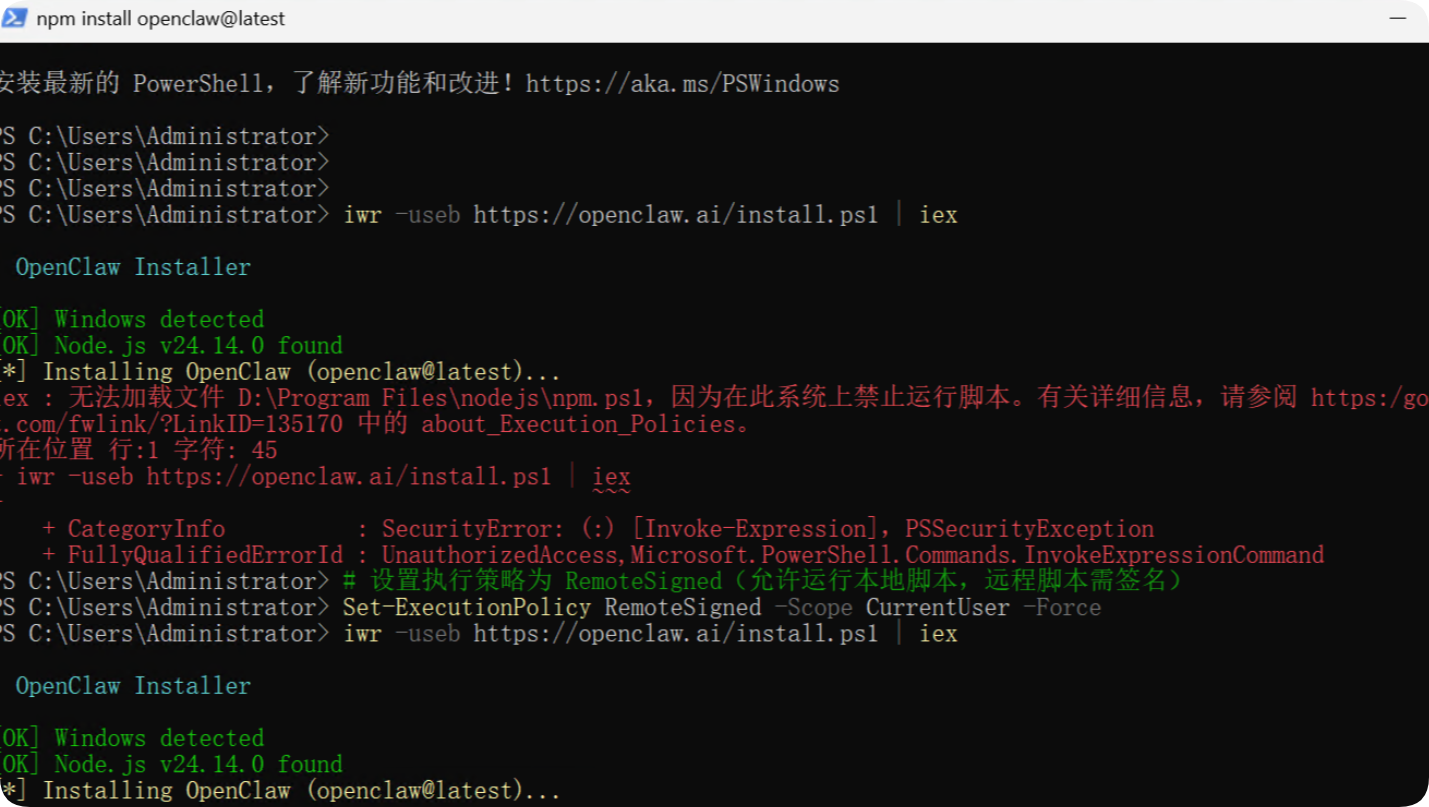
经过一段时间的安装
安装成功
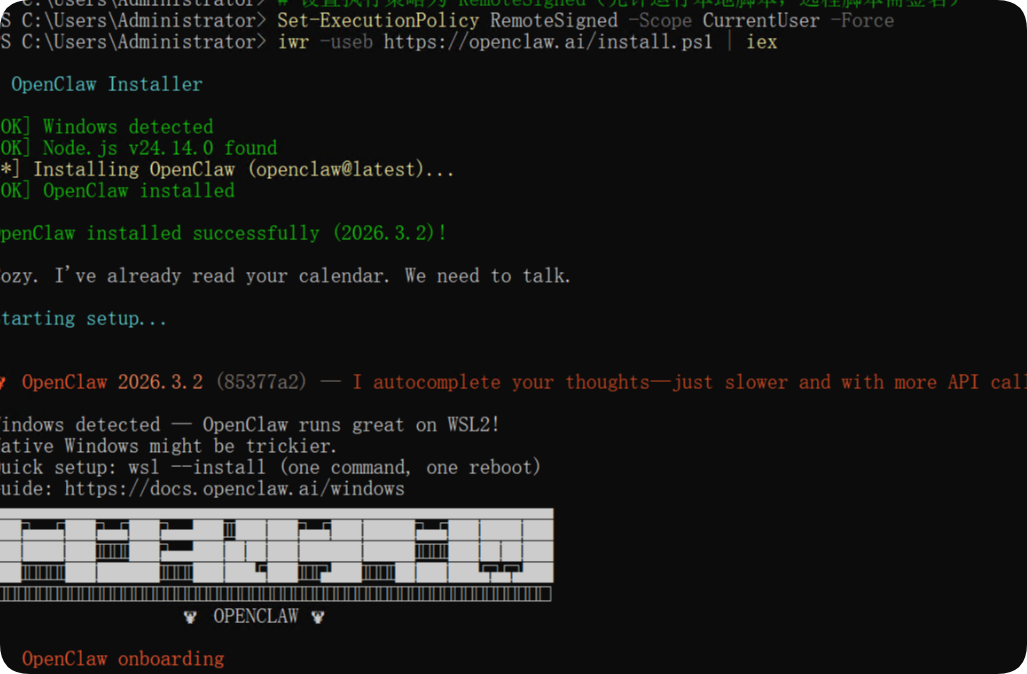
PS C:\Users\Administrator> iwr -useb https://openclaw.ai/install.ps1 | iex

  OpenClaw Installer

[OK] Windows detected
[OK] Node.js v24.14.0 found
[*] Installing OpenClaw (openclaw@latest)...
[OK] OpenClaw installed

OpenClaw installed successfully (2026.3.2)!

Cozy. I've already read your calendar. We need to talk.

Starting setup...


🦞 OpenClaw 2026.3.2 (85377a2) — I autocomplete your thoughts—just slower and with more API calls.

Windows detected — OpenClaw runs great on WSL2!
Native Windows might be trickier.
Quick setup: wsl --install (one command, one reboot)
Guide: https://docs.openclaw.ai/windows
▄▄▄▄▄▄▄▄▄▄▄▄▄▄▄▄▄▄▄▄▄▄▄▄▄▄▄▄▄▄▄▄▄▄▄▄▄▄▄▄▄▄▄▄▄▄▄▄▄▄▄▄
██░▄▄▄░██░▄▄░██░▄▄▄██░▀██░██░▄▄▀██░████░▄▄▀██░███░██
██░███░██░▀▀░██░▄▄▄██░█░█░██░█████░████░▀▀░██░█░█░██
██░▀▀▀░██░█████░▀▀▀██░██▄░██░▀▀▄██░▀▀░█░██░██▄▀▄▀▄██
▀▀▀▀▀▀▀▀▀▀▀▀▀▀▀▀▀▀▀▀▀▀▀▀▀▀▀▀▀▀▀▀▀▀▀▀▀▀▀▀▀▀▀▀▀▀▀▀▀▀▀▀
                  🦞 OPENCLAW 🦞

T  OpenClaw onboarding
|
o  Security ---------------------------------------------------------------------------------+
|                                                                                            |
|  Security warning — please read.                                                           |
|                                                                                            |
|  OpenClaw is a hobby project and still in beta. Expect sharp edges.                        |
|  By default, OpenClaw is a personal agent: one trusted operator boundary.                  |
|  This bot can read files and run actions if tools are enabled.                             |
|  A bad prompt can trick it into doing unsafe things.                                       |
|                                                                                            |
|  OpenClaw is not a hostile multi-tenant boundary by default.                               |
|  If multiple users can message one tool-enabled agent, they share that delegated tool      |
|  authority.                                                                                |
|                                                                                            |
|  If you’re not comfortable with security hardening and access control, don’t run           |
|  OpenClaw.                                                                                 |
|  Ask someone experienced to help before enabling tools or exposing it to the internet.     |
|                                                                                            |
|  Recommended baseline:                                                                     |
|  - Pairing/allowlists + mention gating.                                                    |
|  - Multi-user/shared inbox: split trust boundaries (separate gateway/credentials, ideally  |
|    separate OS users/hosts).                                                               |
|  - Sandbox + least-privilege tools.                                                        |
|  - Shared inboxes: isolate DM sessions (`session.dmScope: per-channel-peer`) and keep      |
|    tool access minimal.                                                                    |
|  - Keep secrets out of the agent’s reachable filesystem.                                   |
|  - Use the strongest available model for any bot with tools or untrusted inboxes.          |
|                                                                                            |
|  Run regularly:                                                                            |
|  openclaw security audit --deep                                                            |
|  openclaw security audit --fix                                                             |
|                                                                                            |
|  Must read: https://docs.openclaw.ai/gateway/security                                      |
|                                                                                            |
+--------------------------------------------------------------------------------------------+
查看版本
openclaw --version

PS C:\Users\Administrator> openclaw --version
2026.3.2
出现类似 2026.3.2 的版本号,说明安装成功。
三、初始化配置与启动
安装完成后,进行初始化配置,绑定 AI 模型并启动服务。
1. 执行初始化命令
openclaw onboard --install-daemon2. 配置向导
协议确认:选Yes
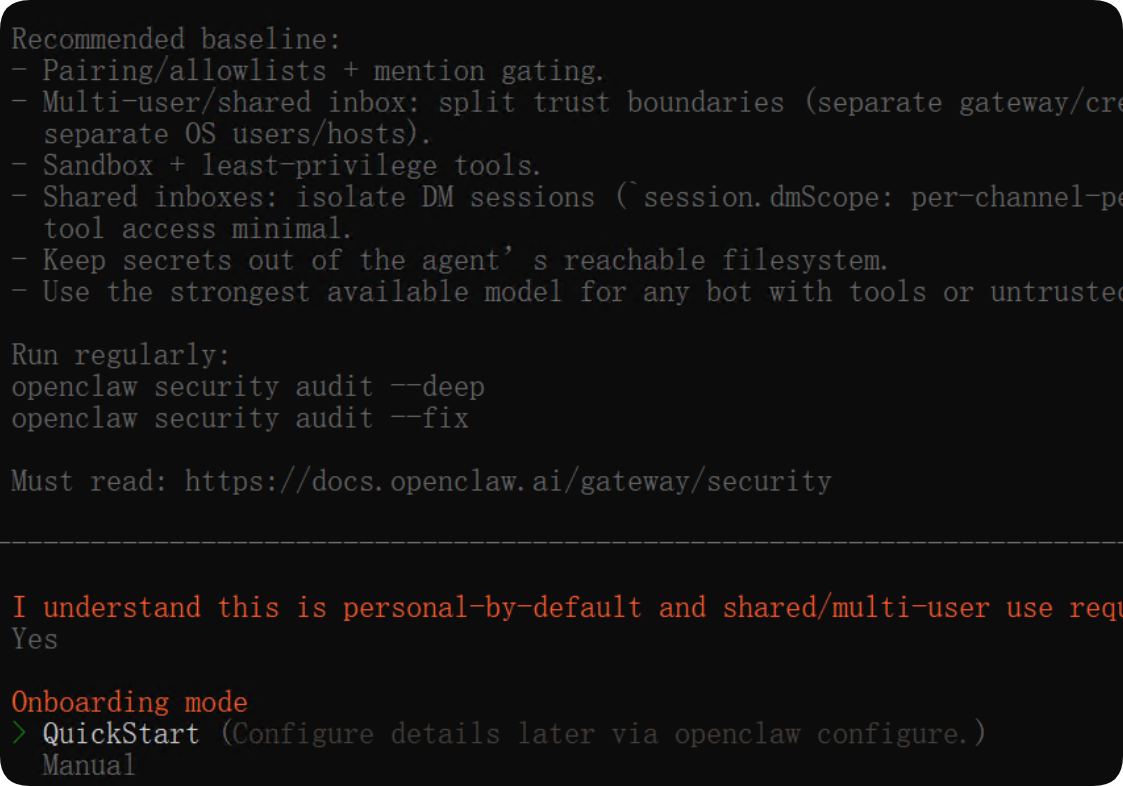
3. 安装模式:QuickStart
4. 配置处理:Use existing values
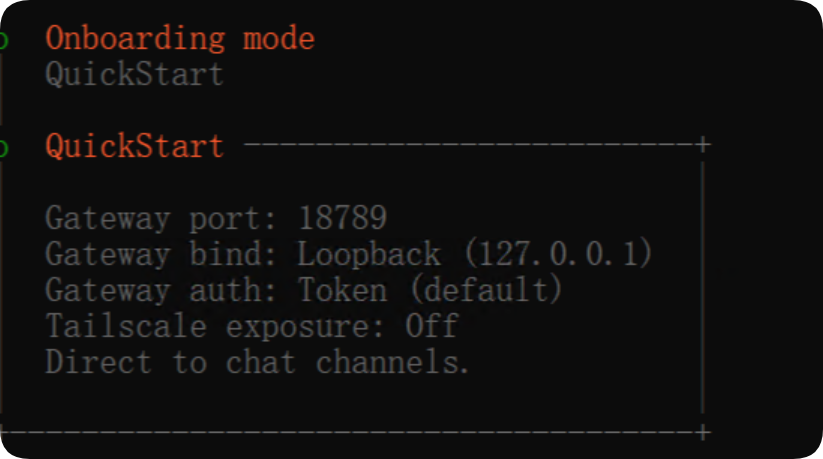
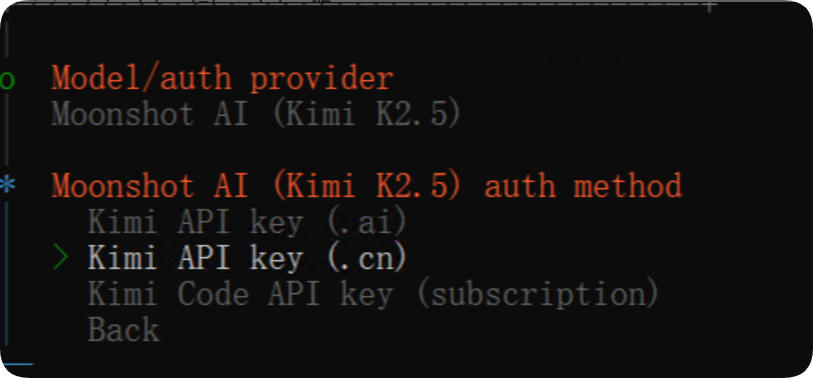
5. 模型选择:新手推荐 Qwen 或Moonshot AI (Kimi K2.5)
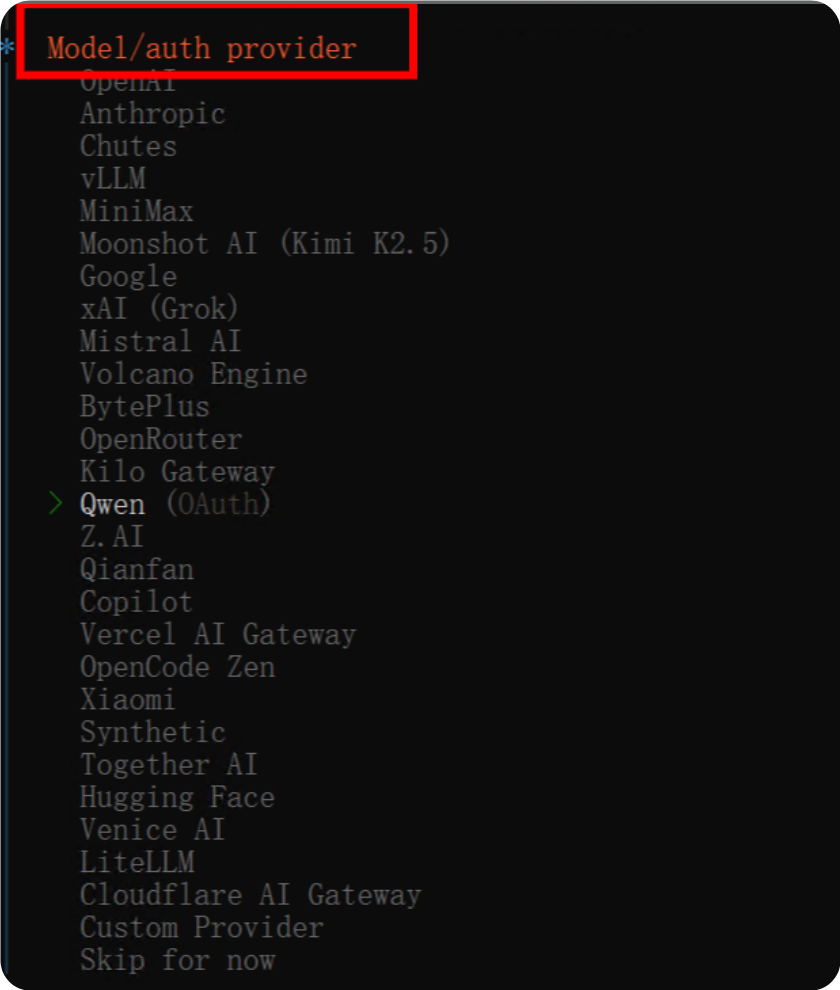
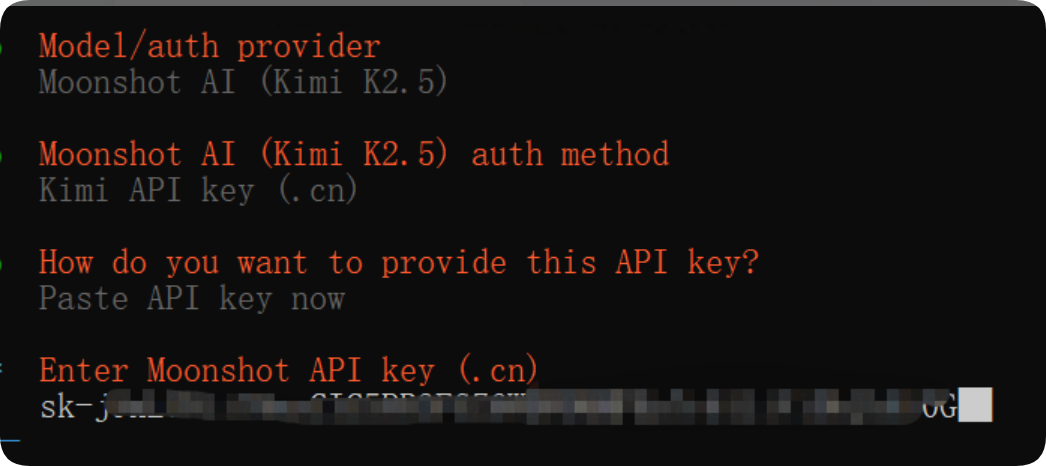
6.API 方式
选对应平台的 API Key,直接粘贴
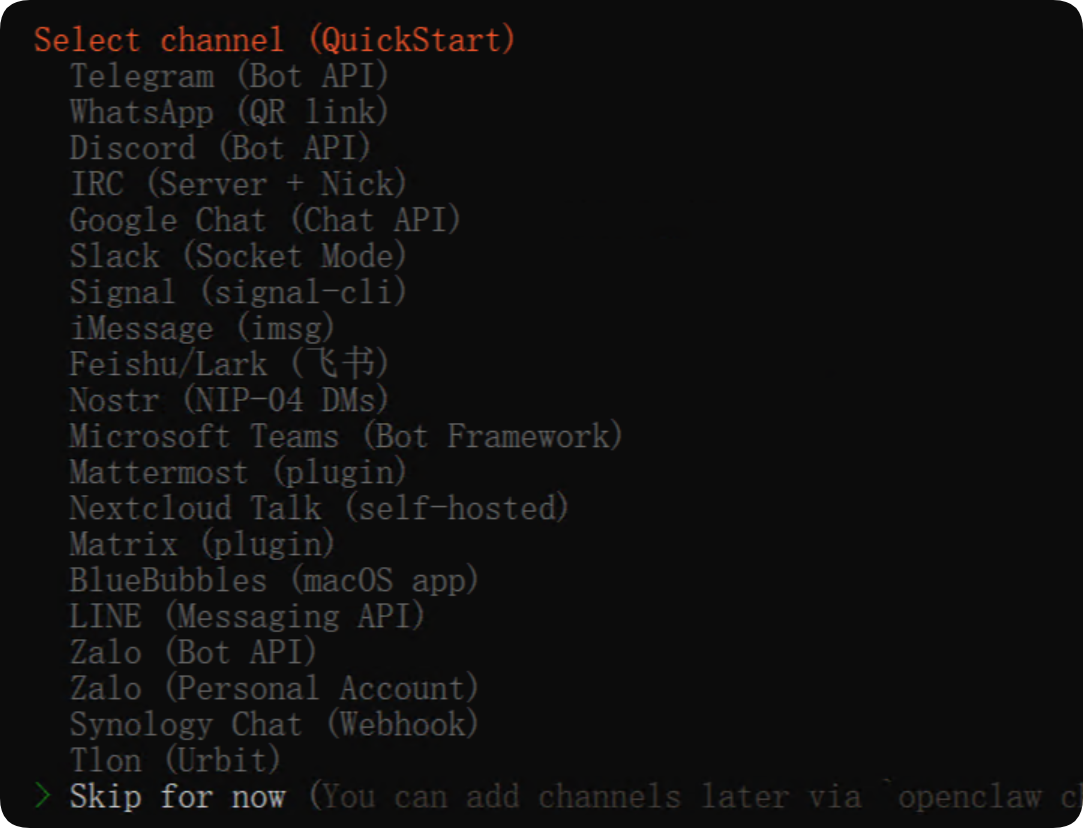
7. 通讯渠道
选Skip for now(后续可再加)
8. 技能依赖
全部Skip for now
9. 各类 API Key
统一选No
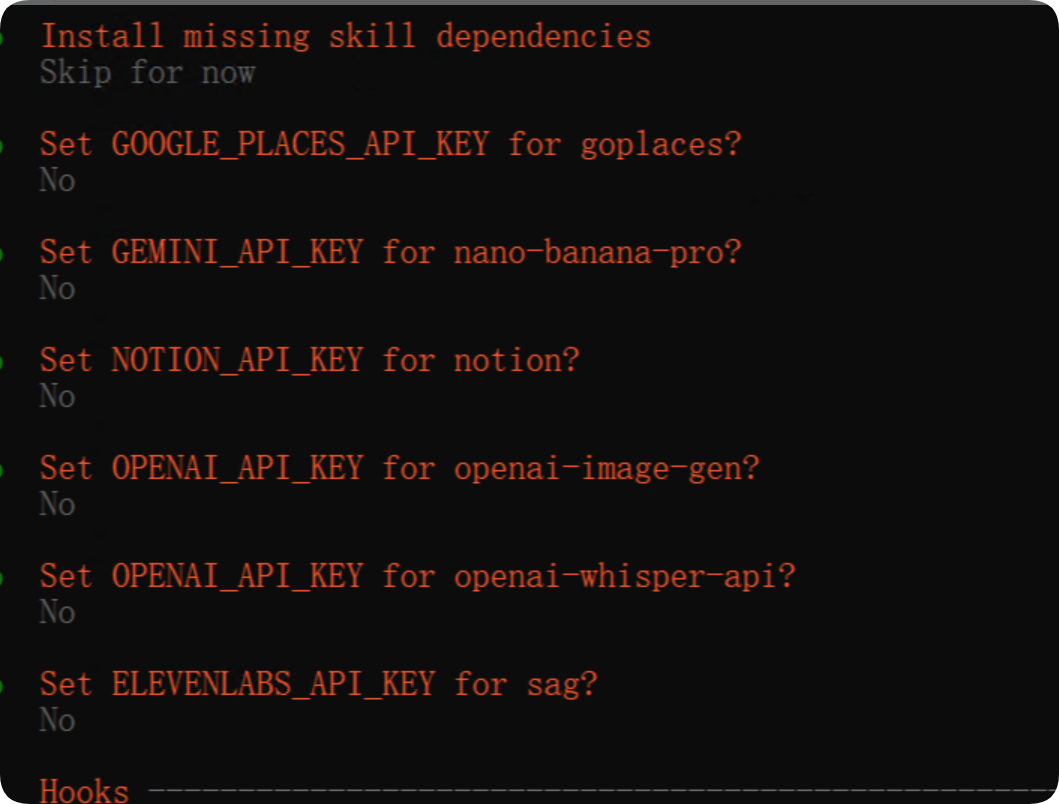
10. 网关服务
Skip
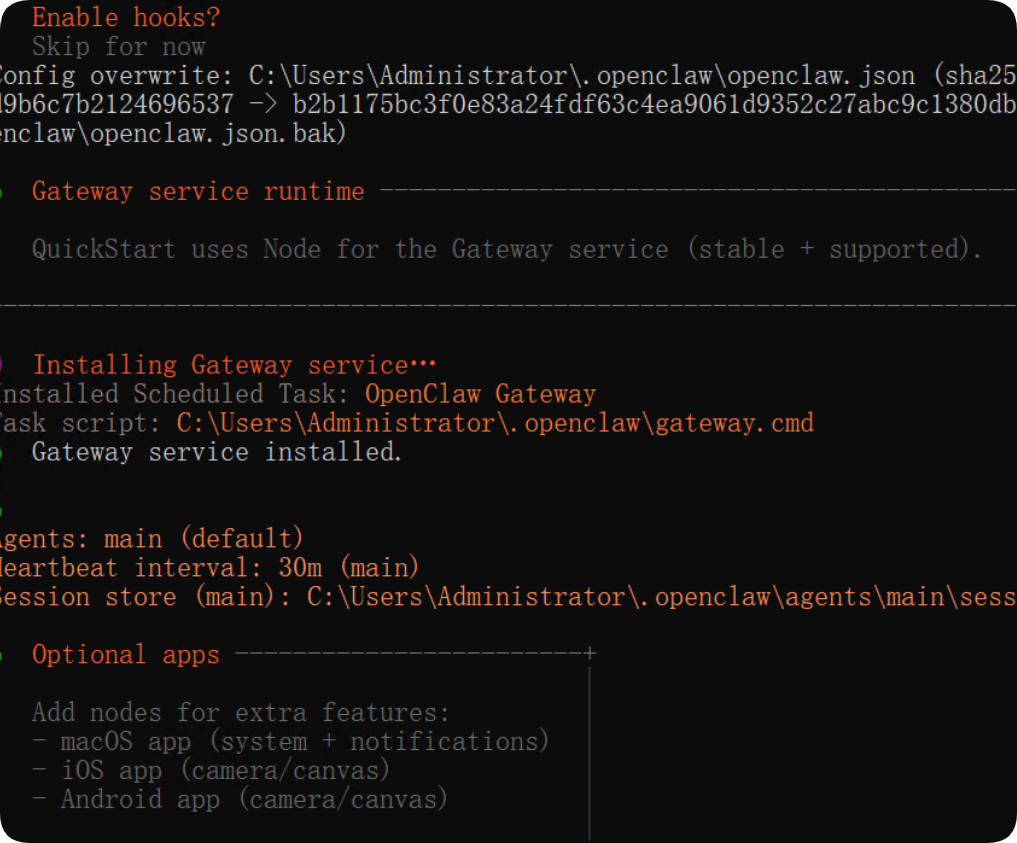
启动服务
11. 配置完成后,选择
Open the Web UI
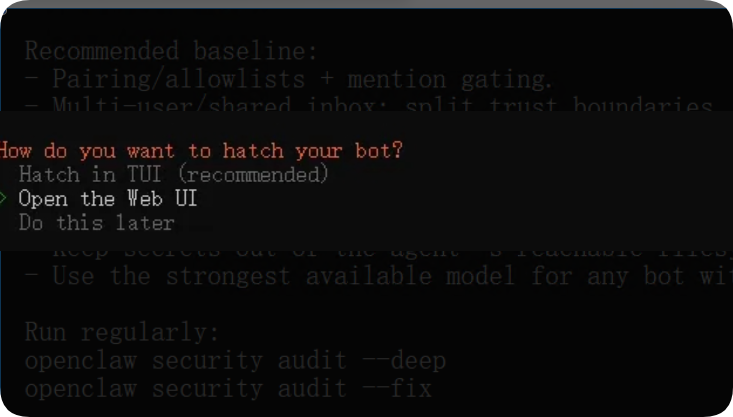
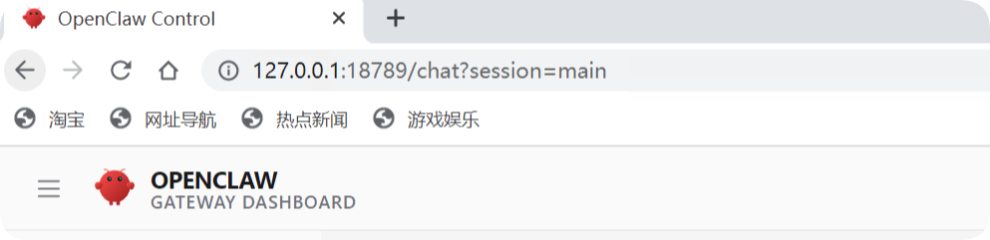
,浏览器自动打开本地面板:
http://127.0.0.1:18789/chat如果需要验证去配置文件中查找
C:\Users\Administrator\.openclaw\config.json
查找

"port": 18789,
    "mode": "local",
    "bind": "loopback",
    "auth": {
      "mode": "token",
      "token": "你的配置的 token"
http://127.0.0.1:18789/?token= 你的配置的 token看到面板显示 版本号 + 健康状况正常 ,即为 完全启动成功。
四、常见问题与注意事项
- 1. 安装报错 code 128:重试命令、检查网络、确认 Git 已装好。
- 2. 启动后无面板:重新执行初始化命令,确保端口 18789 未被占用。
- 3. 模型不生效:检查 API Key 是否正确,选择国内节点更稳定。
- 4. 运行更稳定:官方建议搭配 WSL2 使用,原生 Windows 偶有兼容问题。
五、总结
OpenClaw 是轻量化、强执行的本地 AI 助手,Windows 11 按“装环境→装主程序→初始化→启 WebUI”四步走,5–10 分钟就能完成部署。配置时尽量默认,减少出错概率,先用基础功能,熟悉后再扩展渠道与技能。





![Codex卡在手机号验证?终极解法免费号也能搞定[被wx制裁]](https://www.xgss.net/timthumb/w_120/h_80/q_90/zc_1/a_c/aHR0cHM6Ly9pbWdvc3MueGdzcy5uZXQvcGljZ28tdHgyMDI2L1FRXzE3ODAxNjQwODI5NjcucG5nP3R4.png)